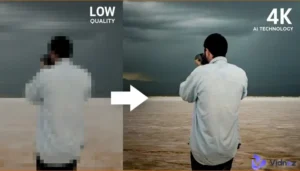

Grainy photos can be frustrating, especially when a moment you wanted to capture clearly ends up looking rough, speckled, or blurry. Whether you’re dealing with low-light smartphone images, high-ISO DSLR shots, or old digital photos, image noise can seriously affect overall quality. The good news is that learning how to fix grainy photos is easier than ever thanks to modern photo editing software, mobile apps, and AI-powered tools.
In this in-depth guide, you’ll learn what causes grainy images, how to fix them using professional tools like Photoshop and Lightroom, and how to improve image quality using free software, mobile apps, and AI solutions. By the end, you’ll know exactly which method works best for your situation and skill level.

What Causes Grainy Photos?
Before learning how to fix grainy pictures, it helps to understand why grain appears in the first place. Image grain (also called noise) usually comes from one or more of the following factors:
1. Low Light Conditions
When a camera doesn’t receive enough light, it compensates by increasing ISO sensitivity. Higher ISO introduces digital noise, which appears as grainy dots across the image.
2. High ISO Settings
While ISO helps brighten photos, pushing it too high reduces image quality. This is one of the most common reasons photos look grainy.
3. Small Camera Sensors
Smartphones and compact cameras have smaller sensors, which struggle more in low-light environments compared to larger DSLR or mirrorless sensors.
4. Over-Editing
Excessive sharpening, contrast, or clarity adjustments can exaggerate noise, especially in shadows.
5. Image Compression
Low-quality JPEG compression or excessive resizing can introduce artifacts that resemble grain.
Understanding these causes helps you choose the right technique when deciding how to fix grainy photos in lightroom, Photoshop, or other tools.
How to Fix Grainy Photos Using Photo Editing Software
Professional and semi-professional photo editing software offers powerful noise reduction features. Let’s explore the most effective methods.
Method 1: Fix Grainy Photos in Adobe Photoshop
Adobe Photoshop is one of the most advanced tools available for image editing. If you’re wondering how to fix grainy photos in photoshop, follow these key steps:
Step-by-Step Process:
- Open your image in Photoshop
- Duplicate the background layer (non-destructive editing)
- Go to Filter → Noise → Reduce Noise
- Adjust:
- Strength (controls overall noise reduction)
- Preserve Details (prevents over-smoothing)
- Reduce Color Noise (fixes color speckles)
- Sharpen Details (adds clarity back)
- Strength (controls overall noise reduction)
Advanced Techniques:
- Use Camera Raw Filter for precise luminance and color noise control
- Apply noise reduction selectively using layer masks
- Combine noise reduction with mild sharpening for balanced results
Photoshop works best when you want full control over every detail, especially for portraits or professional photography.
Method 2: Reduce Grain in Lightroom (Classic & Mobile)
Adobe Lightroom is a favorite among photographers due to its intuitive workflow. Learning how to fix grainy photos in lightroom is simple and efficient.
Lightroom Classic (Desktop):
- Import your image
- Go to the Develop module
- Scroll to the Detail panel
- Adjust:
- Luminance (main noise reduction control)
- Detail (balances sharpness)
- Contrast (prevents flat-looking images)
- Color Noise Reduction
- Luminance (main noise reduction control)
Lightroom Mobile:
- Open the photo
- Tap Detail
- Use Noise Reduction sliders
- Save or export
Lightroom excels at handling grain while preserving natural textures, making it ideal for wedding, landscape, and travel photos.
Method 3: Use Free Tools Like GIMP or Paint.NET
Not everyone wants a subscription-based tool. If you’re looking for free ways to learn how to fix grainy pictures, open-source software can help.
GIMP:
- Go to Filters → Noise → Reduce Noise
- Use plugins like Wavelet Decompose for advanced noise control
- Best for users comfortable with manual adjustments
Paint.NET:
- Install noise reduction plugins
- Simple interface, ideal for beginners
- Less advanced but effective for mild grain
These tools are great alternatives if you want decent results without spending money.
Method 4: AI Noise Reduction Tools (Desktop & Online)
Artificial intelligence has transformed photo editing. Modern AI tools can automatically analyze and remove noise while preserving details better than traditional methods.
An AI photo editor uses machine learning models trained on thousands of images to distinguish noise from real details.
Benefits of AI Noise Reduction:
- Automatic adjustments
- Faster workflow
- Minimal manual tweaking
- Better texture preservation
One notable example is Leawo Photo Enlarger, which uses AI technology not only to reduce noise but also to enhance image resolution. It’s especially useful for:
- Old or low-resolution photos
- Enlarging images without losing quality
- Fixing grain in scanned images
AI tools are perfect for users who want professional results with minimal effort.
Method 5: Online Noise Reduction Websites
If you don’t want to install software, online tools can be a convenient option.
How Online Tools Work:
- Upload your image
- Choose noise reduction level
- Download the enhanced photo
Pros:
- No installation required
- Fast and user-friendly
- Good for quick edits
Cons:
- File size limits
- Privacy concerns
- Less control compared to desktop software
These platforms are ideal for casual users or one-time fixes.
How to Fix Grainy Photos on iPhone & Android
Smartphone photography is more popular than ever, but mobile cameras often struggle in low light. Fortunately, you can still improve image quality directly on your phone.
Method 1: Built-in iPhone & Android Editing Tools
iPhone (Photos App):
- Open the photo
- Tap Edit
- Adjust:
- Noise Reduction
- Sharpness
- Exposure and Highlights
- Noise Reduction
Android (Google Photos or OEM Gallery Apps):
- Open image
- Tap Edit
- Use sliders like:
- Denoise
- Clarity
- Structure
- Denoise
These tools are surprisingly powerful for light grain correction.
Method 2: Mobile Apps for Noise Reduction
If built-in tools aren’t enough, third-party apps offer better results.
Popular Features:
- AI-powered noise reduction
- Batch processing
- One-tap enhancements
Many modern apps now function as a mobile AI photo editor, delivering impressive results with minimal effort. These are great for social media photos, selfies, and everyday shots.
Tips to Prevent Grainy Photos in the Future
While learning how to fix grainy photos is important, prevention is even better:
- Use proper lighting whenever possible
- Keep ISO as low as possible
- Use night mode on smartphones
- Shoot in RAW format
- Use a tripod in low light
- Avoid excessive digital zoom
These habits reduce noise at the source, making post-processing easier.
Conclusion
Grainy photos don’t have to be a lost cause. Whether you’re editing on a desktop, online, or mobile device, there are plenty of effective solutions available. From learning how to fix grainy photos in photoshop and how to fix grainy photos in lightroom, to using free tools, mobile apps, or advanced AI solutions like Leawo Photo Enlarger, there’s a method for every skill level and budget.
The key is balancing noise reduction with detail preservation. Over-smoothing can make images look unnatural, while under-correcting leaves distracting grain. With the techniques outlined in this guide, you can confidently restore clarity, improve image quality, and bring your photos back to life.
Master these methods, experiment with different tools, and soon fixing grainy photos will become a simple and rewarding part of your photo editing workflow.